Tabletop Simulator is not a video game, it is a digital program that recreates the environment, and its physicality, of a game board and its components. As always, you need to get familiar with the commands and procedures before you can manage the interface. To avoid penalizing your gaming experience, some friends suggested we write a guide to help players inexperienced with the program to try The Fall of the King™. If you have them, use headphones with a microphone and, as soon as you enter the game, press C on your keyboard to talk to your Guest and any Audience. Everyone must do the same to talk to you. The first time it may also be necessary to set an additional setting: in the top bar, go to Menu > Configuration > Sound > Voice Chat and choose Toggle from the drop-down menu. Before starting the game, you and your Guest (your opponent), to optimize and facilitate maneuvers on the battlefield, must click the command at the top right with a little man lifting weights and set the Lift Height to the minimum and the Rotation Degrees (the number next to the little man) to 90°. In Historical Scenarios III and IV, the Guelph player must instead set it to 15°, to easily move the Vehicle (the Bolognese Carroccio). Promote your Guest by clicking on their name and selecting Promote, to allow them to use all the game's functions. Both of you choose your identifying Color by clicking on your name and choosing the Change Color option by clicking on one of the colored circles that appear around or at the center of the game board (yellow for the Ghibelline player and red for the Guelph player). Agree with your Guest on which of the four Historical Scenarios you want to play and click the Place button on the corresponding bag to set up all the components. If you change your mind, click the Collect button to put everything back in the bag. To set up the movement measurement of the tiles, among the commands on the left, choose Line (the fourth from the top) and set, by clicking: Inch, 2D, Free, Edge, No Log. Move your view: press W, A, S, or D on your keyboard, and use the mouse wheel to zoom in/out your view. Measured movement: move the cursor over a tile and click on the edge, then hold Tab on your keyboard and move the tile the desired number of segments. Roll the Medium die: move the cursor over the die and press R on your keyboard. The longer you hold it, the more it shakes. Take more indicators or markers from the relevant bag: to draw more indicators or markers, move the cursor over the relevant bag and press a number from 1 to 9 on your keyboard (note, it does not work from the numeric keypad). Focus on a component: move the cursor over the component you want to focus on (a card, for example) and press Alt on your keyboard. You will see it enlarged and in the foreground. Activate a stack: to rotate the cards in a stack, move the cursor over the cards and press E or Q on your keyboard. Flip a card: move the cursor over the card and press F on your keyboard. Take a card from a stack: hold down on a card in a stack and move it quickly. Move a stack: hold down on the stack, wait a second, and move it. To look at all the cards in a stack: right-click on the stack, select Search, and move the cursor over the enlarged card you want. Mount/Dismount: to switch a Soldier tile from Milites to Pedites or vice versa, move the cursor over the tile and press 1 or 2 on your keyboard. Magnifying glass: press M on your keyboard. Quick zoom: press Z on your keyboard and press Z again to return to the previous view. Roll multiple dice at once: during combat it is normal to have to roll more than one die at once; click on one of the two wheels of your color the number of dice (from 1 to 9); if the number is greater than 9, also use the second wheel (not the same one, or the dice already rolled will disappear); to remove the dice rolled from a wheel, click on its X. If you need to reroll, select the dice and press R on your keyboard. Consult the Rulebook or Historical Scenarios: right-click and select Pop-Out; you can navigate the file using the mouse wheel or by pressing Page Up or Page Down on your keyboard. Setup
How to play
©2025 Tiopi srl. All rights reserved. VAT No. 02356600391

Guide to Tabletop Simulator
Guide to Tabletop Simulator
2020-06-03 08:42
2020-06-03 08:42
Array() no author 90391
Wargame, wargame, ventura-battle-system, the-fall-of-the-king, it, top-hat-games, tabletop-simulator, steam, guide, sir-chester-cobblepot,
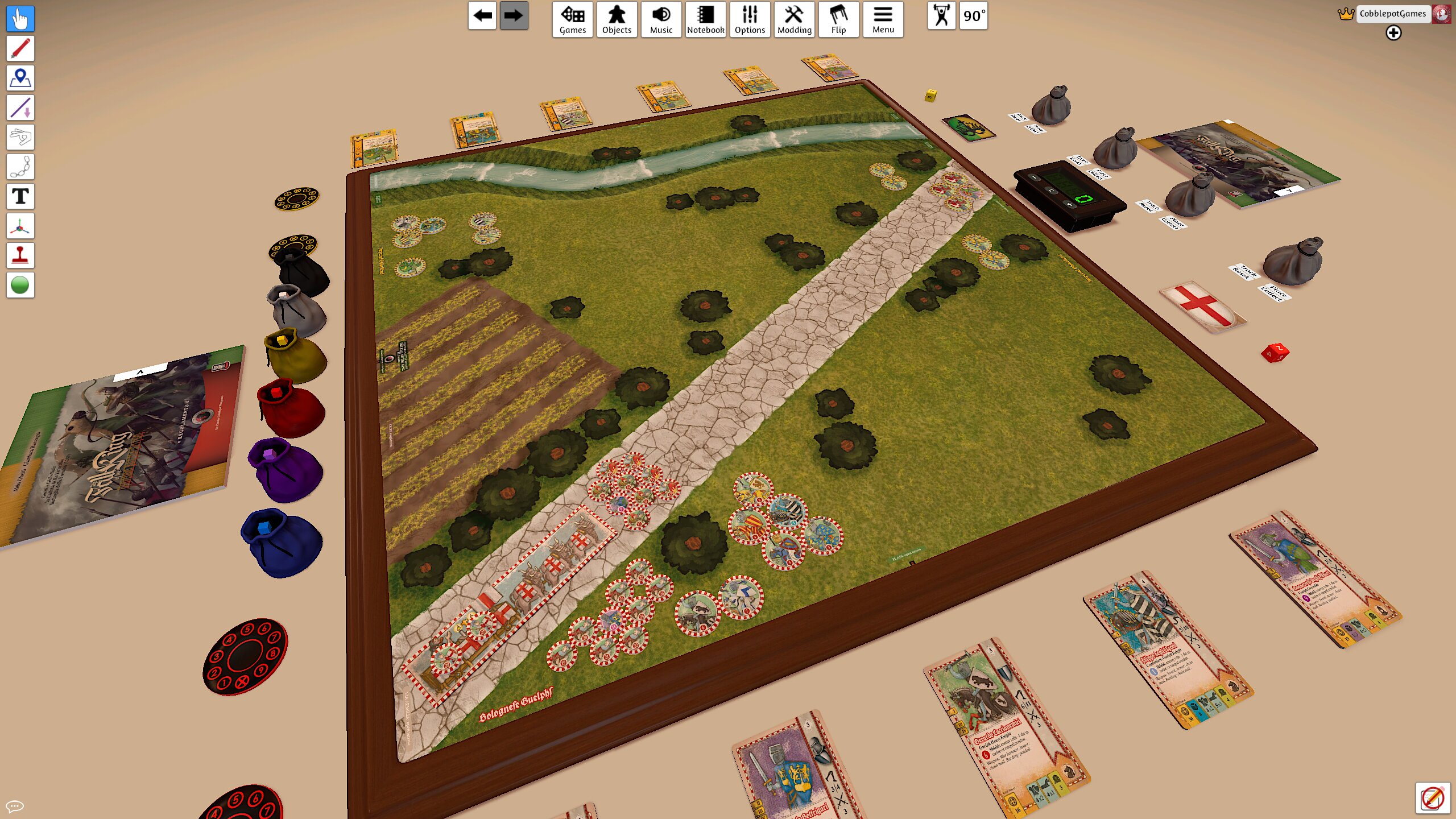
IT. Cobblepot Games and Top Hat Games invite you to play The Fall of the King on Tabletop Simulator: this is the guide to become expert players
©2025 Tiopi srl. All rights reserved. VAT No. 02356600391